
Set up checkout
Choose the questions your checkout asks and where buyers land after they pay.
Every product in your store sells through one checkout. It always asks the buyer for their name and email. On the Checkout page you can add your own questions, offer extra products, and choose what happens once the payment succeeds. The settings apply to the whole store.
Open Checkout in the sidebar, under Sales. The page has five tabs:
- Form fields: the extra questions the checkout asks.
- Order bump and Post-payment offer: see Order bumps and offers.
- After payment: where the buyer lands once they have paid.
- Recovery: emails to buyers who leave without paying. See Unpaid checkouts.
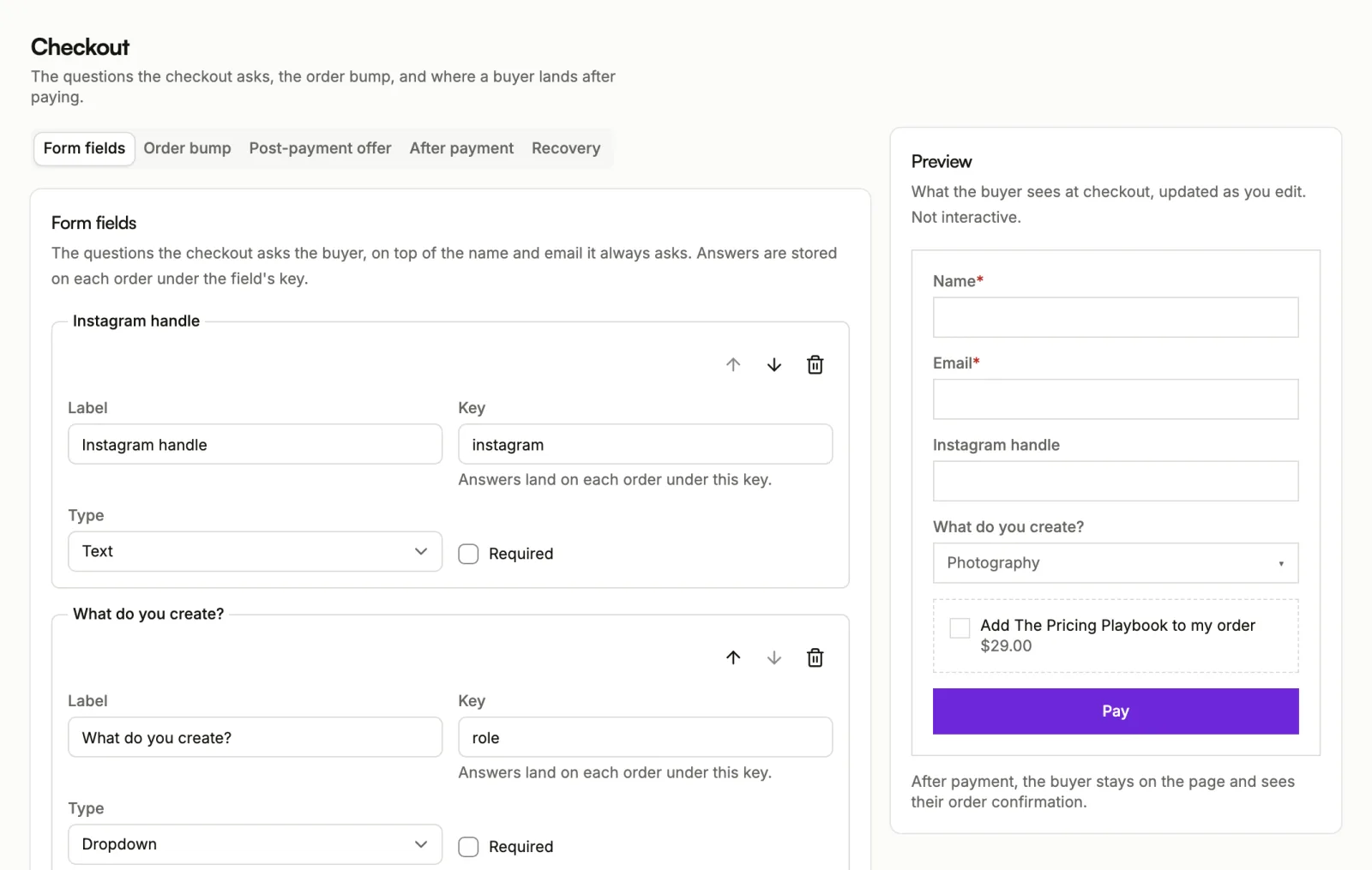
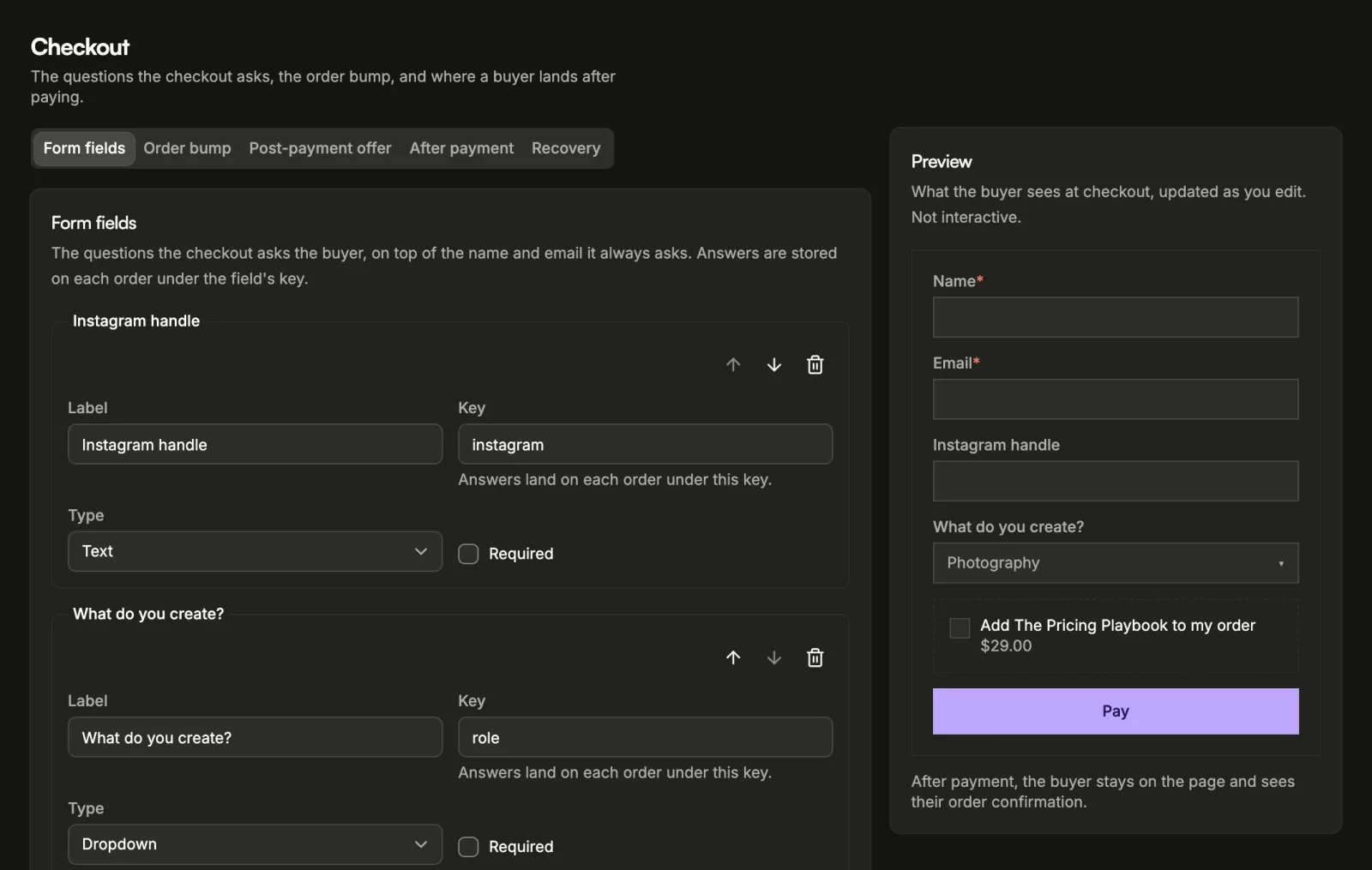
Beside the form, Preview shows what the buyer sees at checkout and updates as you edit. It is not interactive.
If your verification isn't finished, the page shows Checkout opens after verification. Buyers can't pay until it is done. See Verification.
Add a question
- Open the Form fields tab and choose Add field.
- Fill in Label: the question the buyer reads, such as "Company name".
- Fill in Key: a short name the answer is stored under on each order,
such as
company. Every field needs one, and no two fields can share it. - Pick a Type: Text, Email, Phone, Long text, Dropdown, Checkbox or Hidden.
- For a Dropdown, list the choices in Options (one per line).
- Turn on Required if the buyer must answer.
- Choose Save.
Use the arrows to change the order of the questions. The buyer's answers show on each order under Buyer answers.
Custom fields depend on your plan. If your plan doesn't include them, the tab shows an upgrade notice.
Renaming or removing a question
Orders you already took keep their answer under the key they were saved with. If you change a key, new orders store the answer under the new key, so anything that reads the answers sees both names.
Removing a saved question asks you to confirm with Remove field. Past orders keep their answers; new orders no longer ask it.
Hidden fields
A Hidden field never shows to the buyer. It picks up a value from the
link that opened the checkout, which is useful for tags like a campaign or a
source. Add ?key=value to a checkout or product page link, using the field's
key.
Buyers can edit a link, so never use a hidden field to identify someone. If you build your own site, you can also pass hidden fields from code; see Checkout in sorai-js.
Choose where buyers land after paying
Open the After payment tab and pick one:
- Stay on the page: the buyer sees the confirmation and their purchase right where they paid.
- Redirect to a URL: send the buyer to your own thank-you page. Enter a
full
https://address or a path on your storefront in Redirect URL. The order number is added to the address as?order=. This option depends on your plan. - Open WhatsApp: hand the buyer into a WhatsApp chat with you. Enter a phone number with its country code, or a full wa.me link.
Choose Save when you are done.
If saving doesn't work
When something on a tab needs fixing, Save takes you to that tab and marks the problem. The usual ones: