Store settings
Your store's name, logo, language, currency, payment methods and branding.
Store settings holds everything that configures one store. Open it from the foot of the console sidebar. It has five sections: General, Theme, Payment methods, Domains and Integrations. With more than one store, each has its own settings; pick the store first in the store switcher.
General
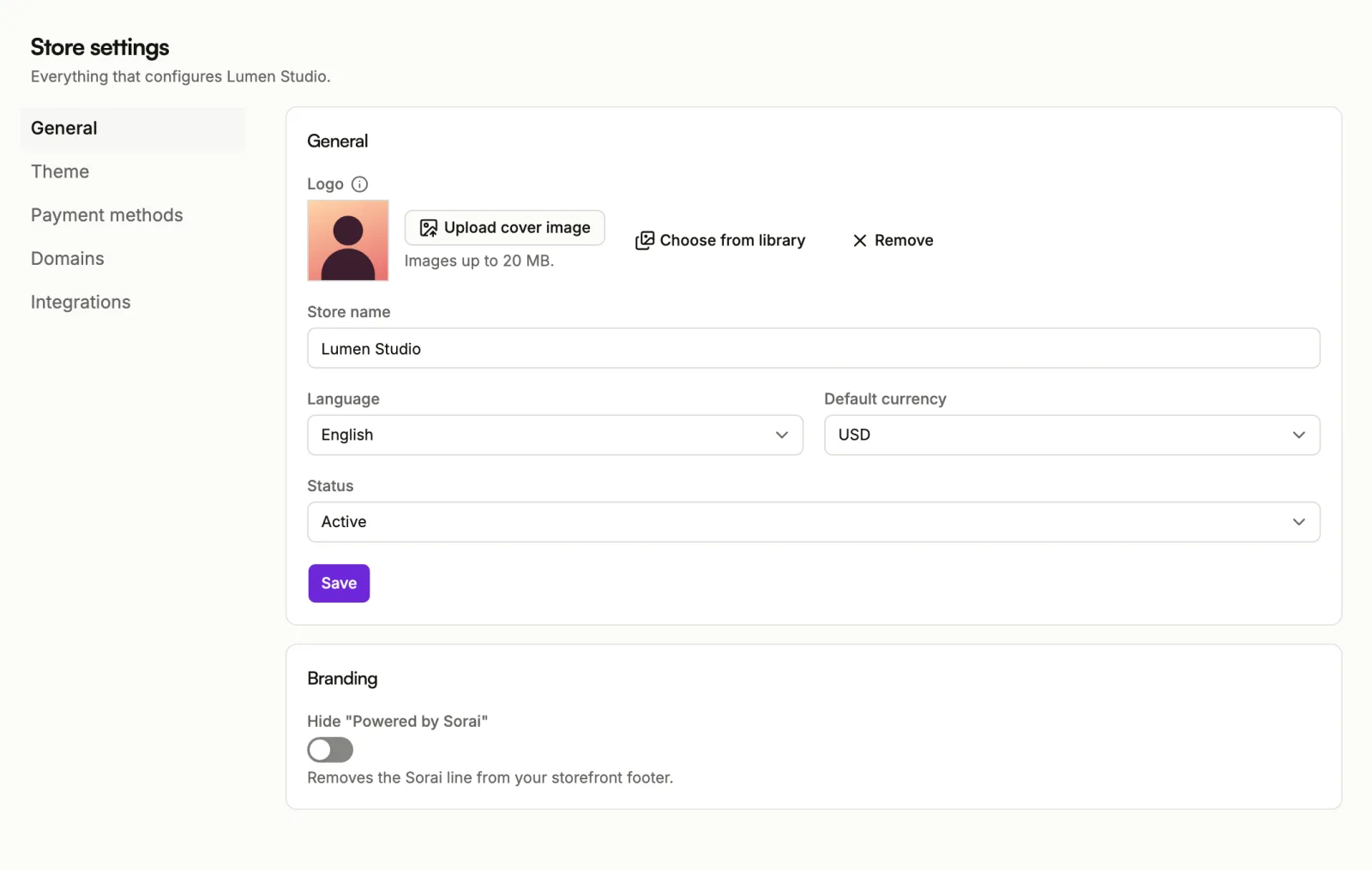
- Logo: shown in your storefront header in place of the store name. Uploading or removing it saves straight away.
- Store name: required.
- Language: the language your storefront speaks to buyers.
- Default currency: the store's currency, chosen from the currencies your shop sells in.
- Status: Active or Disabled.
Choose Save to keep your changes.
A Disabled store stops answering: buyers who open any of its pages get Page not found. Set it back to Active to reopen it.
Branding
Hide "Powered by Sorai" removes the Sorai line from your storefront footer. It needs the Pro or Business plan; on a plan without it, the option is marked with the plan it needs.
Theme
Fonts, colours and corners for the whole shop. See Theme and colours.
Payment methods
Payment fee
Under Who pays, choose who carries the fee for accepting a payment:
- I pay the payment fee: the price stays what you set.
- My buyers pay it as a service fee: the fee is added to what they are charged at checkout.
Then choose Save. If the card says Set by Sorai. Contact support to change it., the choice is fixed for your account.
Which methods buyers can use
Payment methods lists what your buyers can pay with, grouped as QRIS, Virtual Account, E-wallets and Card. Turn each one on or off. Each method shows its fee, who pays it, its minimum and maximum amount, and whether it can be refunded.
The list is empty until your account can take payments. A method marked Not available in your currency cannot be used in your store's currency. A method marked Paused cannot be chosen by buyers right now. One marked No longer offered cannot be used at all; turn it off.
Domains
Serve your shop and checkout from a domain you own. See Add a custom domain.
Integrations
Tracking holds this store's ad and analytics pixels; see Tracking. Webhooks and Notifications are set for your whole organization rather than one store.
Who can change settings
Members without permission to manage the store see these settings read-only. See Members.