

Add a custom domain
Serve your shop and checkout from a domain you own.
A custom domain lets buyers reach your storefront and checkout on your own
hostname, such as shop.example.com, instead of your store's Sorai address.
You add the domain in the console, add its DNS records where you manage your
domain, and Sorai takes it from there.
Custom domains need the Pro or Business plan. On a plan without them, Add domain offers the upgrade instead.
Add the domain
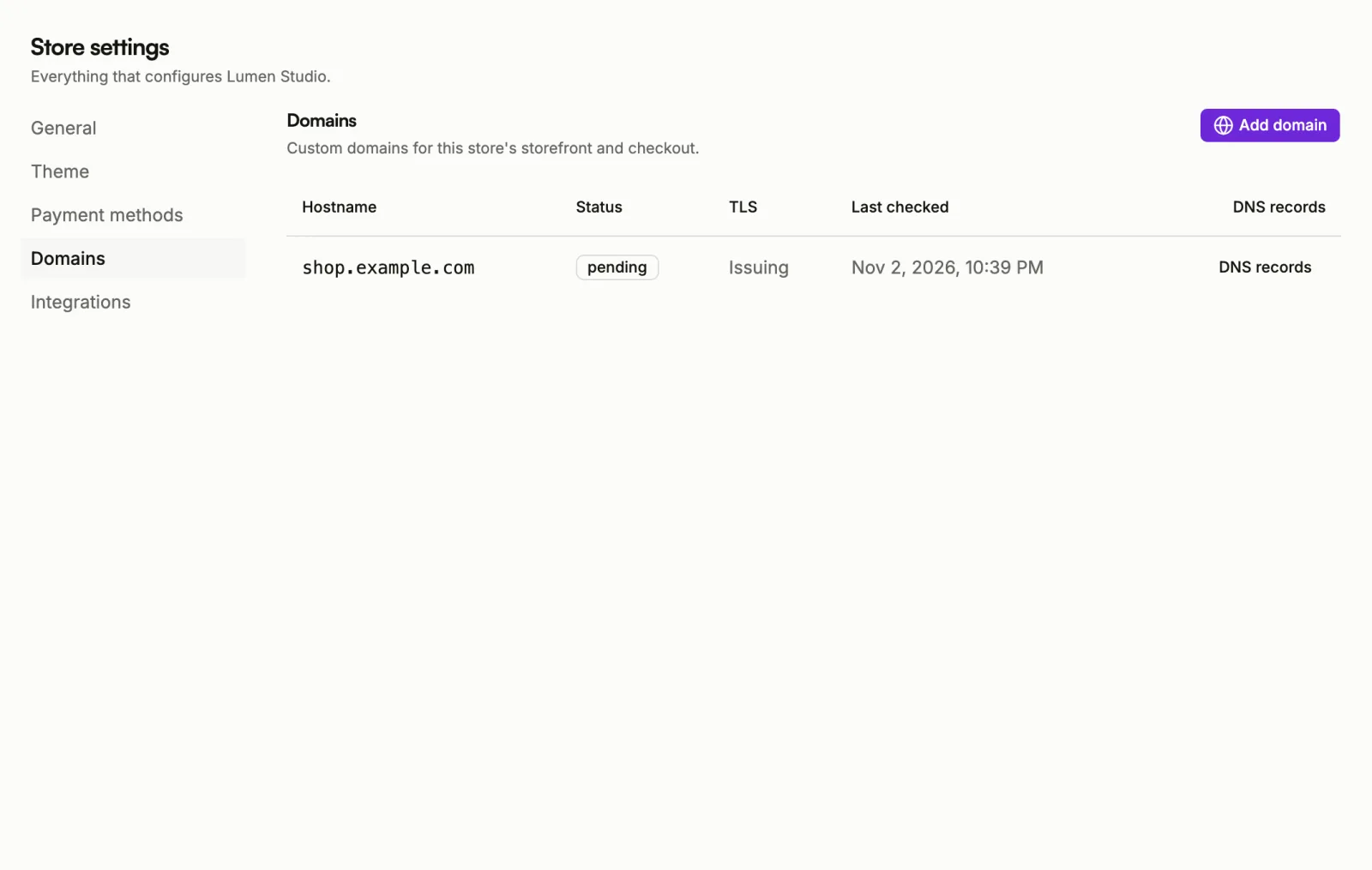
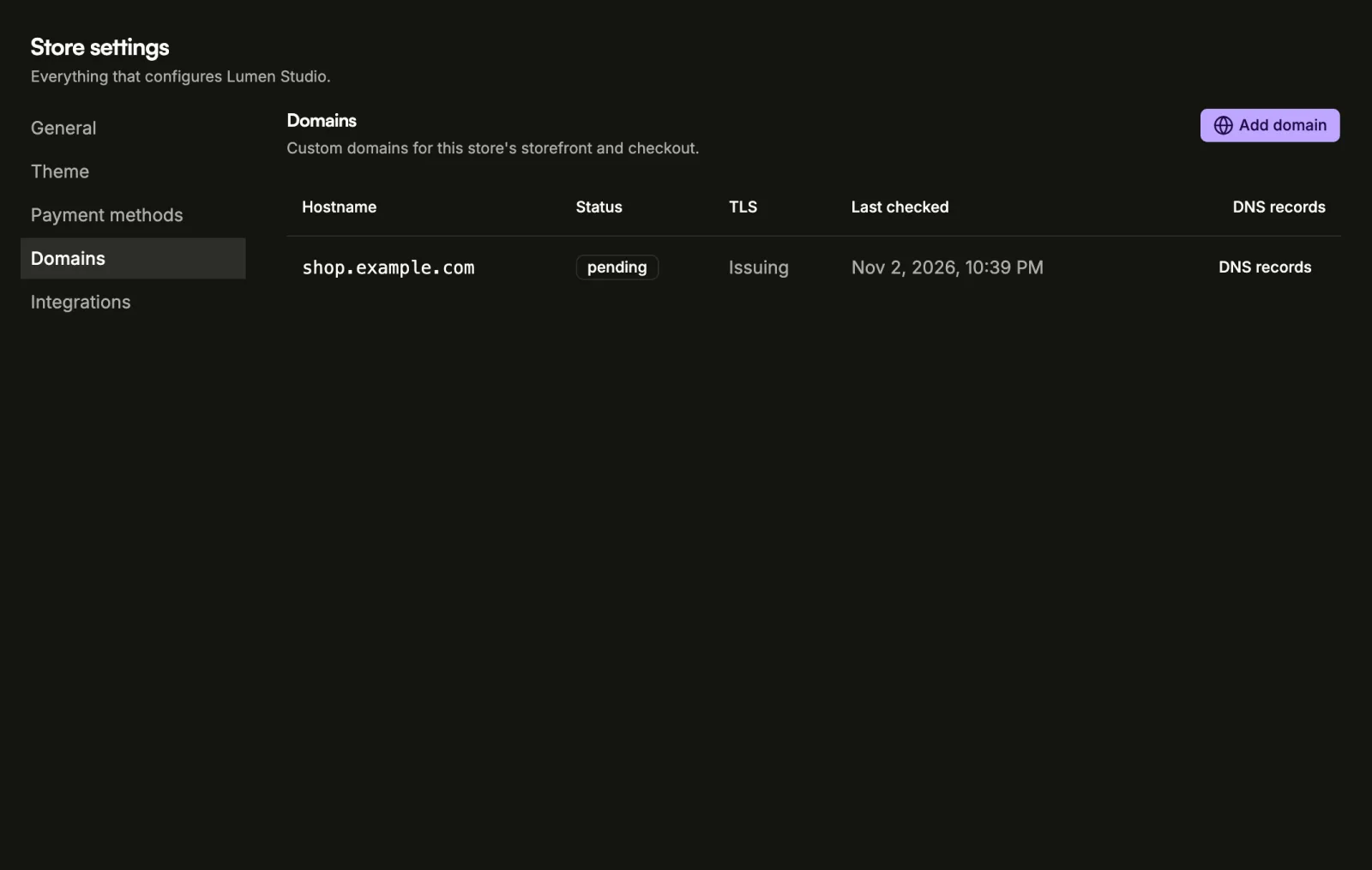
- Open Store settings, then Domains.
- Choose Add domain.
- Enter the Hostname, for example
shop.example.com. Enter the name only, with nohttps://, no path and no port. - Choose Add domain.
The console then opens the setup for that domain.
Add the DNS records
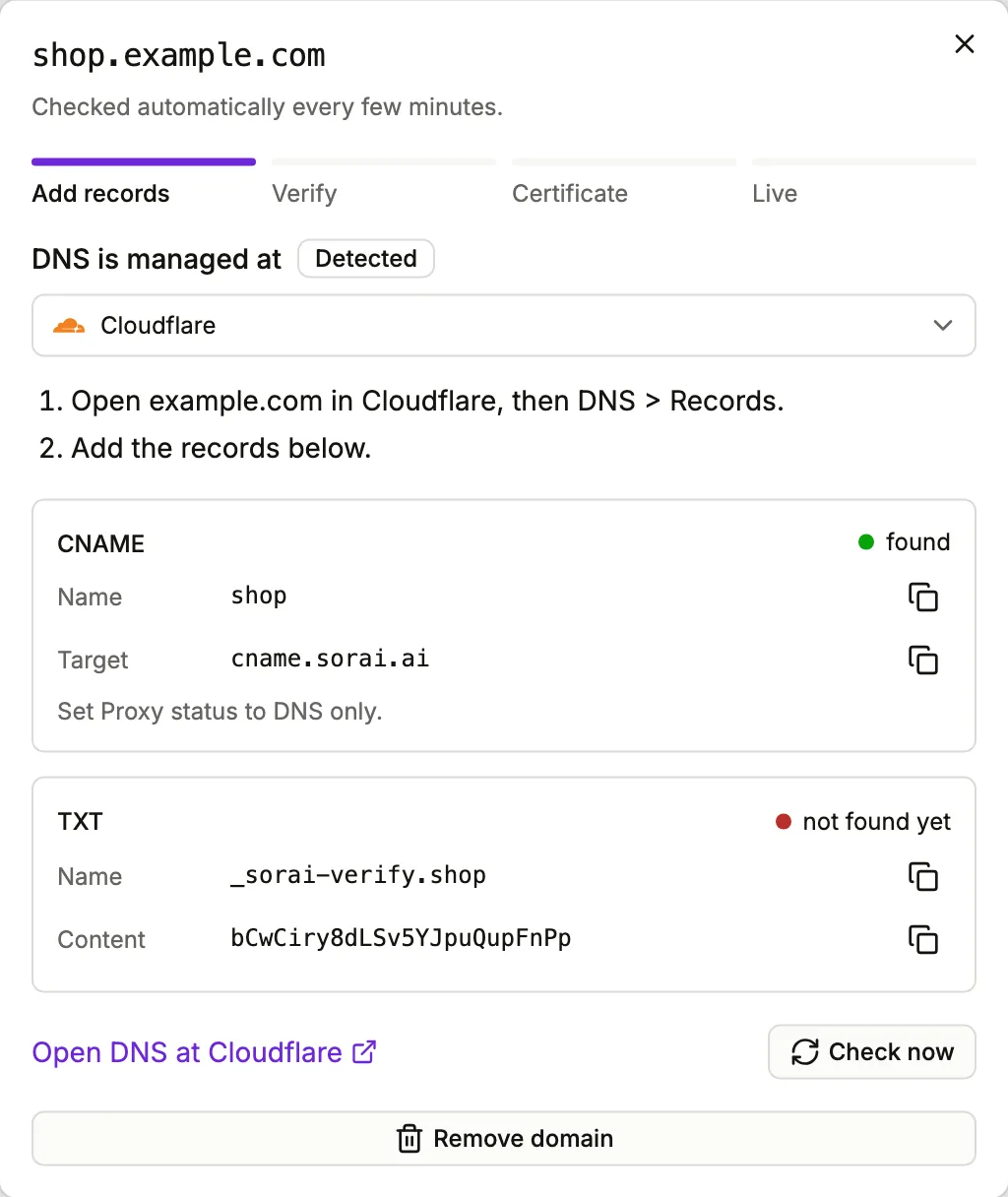
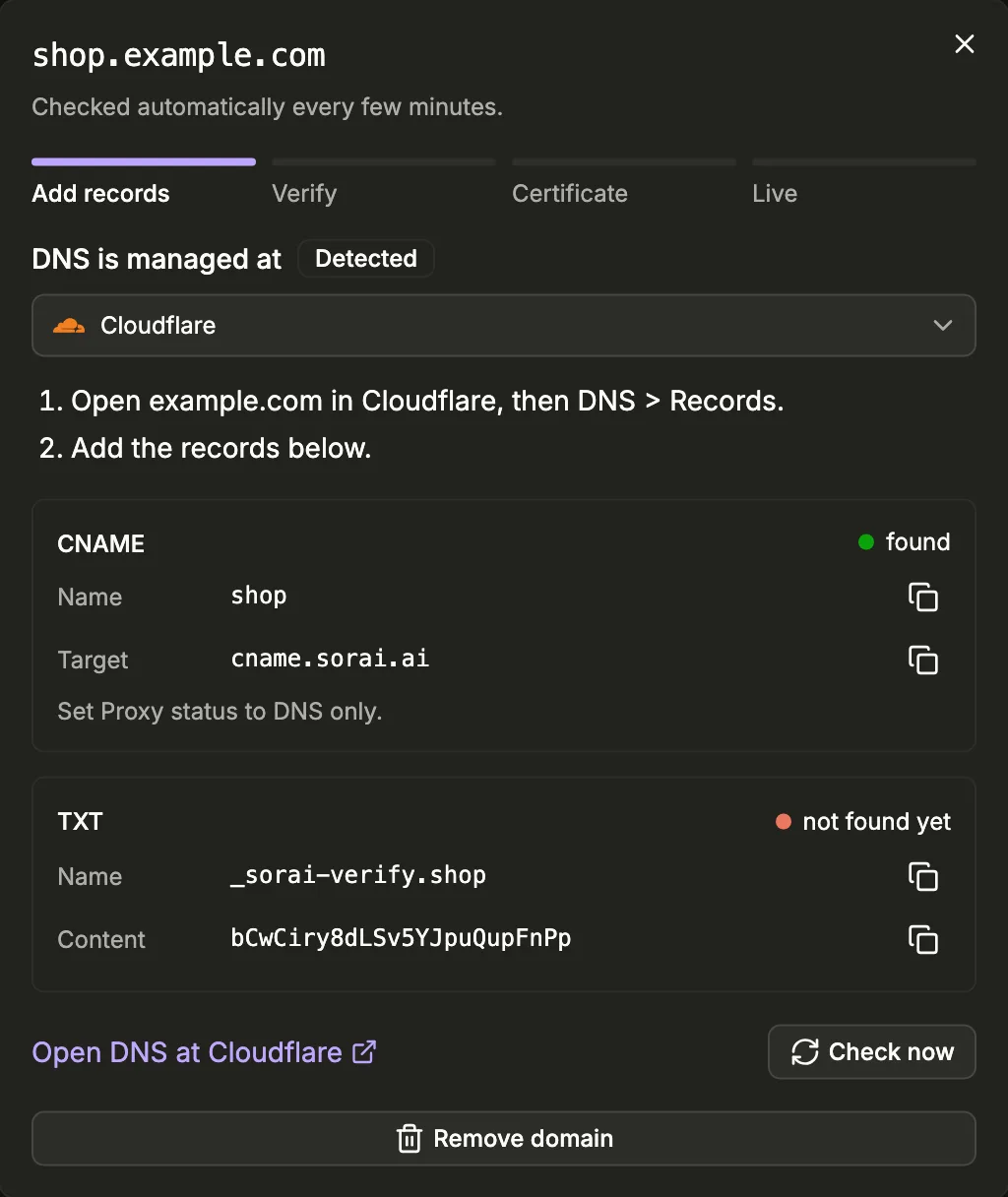
The setup shows where your domain's DNS is managed, under DNS is managed at. Sorai recognises Cloudflare, GoDaddy, Namecheap and Hostinger and marks the one it found as Detected. If that is wrong, or yours isn't listed, pick another or Another provider.
Under it are two short steps for that provider, then the records to add. Names are written the way your provider's DNS page expects them, and each name and value has a copy button. Open DNS at links straight to your provider's DNS page.
| Type | Name | Value |
|---|---|---|
| CNAME | your hostname | cname.sorai.ai, as shown in the console |
| TXT | _sorai-verify. followed by your hostname | the verification code shown in the console |
- The CNAME record points your domain at Sorai, so visitors reach your store.
- The TXT record proves the domain is yours. Its value is unique to this domain.
With Another provider, a name may show its Full name as well. Use the short one if your provider adds your domain to the end of every name, and the full one if it doesn't.
Cloudflare
The CNAME note tells you how to set Proxy status: either that proxy on or off both work, or to set it to DNS only. Follow the note the console shows.
A bare domain
A bare domain is one without a part in front, like example.com. Most
providers don't allow a CNAME there, so the console asks you to use the www
name instead and forward the bare domain to it. When the console shows A
(and AAAA) records for a bare domain instead, add those in place of the
CNAME.
Follow the setup
A strip at the top of the setup shows where the domain is: Add records, Verify, Certificate, then Live. Each record shows checking, found or not found yet. If the CNAME points somewhere else, the record names where it points now.
Sorai checks on its own every few minutes, so you can close the setup and come back. After you add the records, choose Check now to have Sorai look at once. DNS changes can take a while to spread.
Once the records are found, the domain is verified and its security certificate is issued, which usually takes a few minutes. If the certificate is still pending after that, the setup shows a TXT (certificate) record; add it as well. When the certificate is issued, the domain serves your store.
To open the setup again later, choose DNS records on the domain's row (Manage once it is live).
Domain status
| Status | What it means |
|---|---|
| pending | Waiting to find the records. |
| verified | The domain is yours; its certificate is being issued. |
| active | The domain is serving your store. |
| failed | The setup did not finish in time and checks have stopped. |
The TLS column shows the certificate: Active, Issuing, On first visit (issued when the first visitor arrives), Not available or Failed.
Keep the records in place
Sorai rechecks every live domain daily. If the records are gone, the row shows Records missing and the setup names a date. Put the records back by then, or the domain stops serving your store and you have to add it again.
If something goes wrong
Remove a domain
- Choose DNS records or Manage on the domain's row.
- Choose Remove domain, then confirm.
The domain stops serving your store immediately. If you add it again later, it goes through verification and a new certificate first.