

Find your way around
The top bar, the sidebar, and the banners that ask you to act.
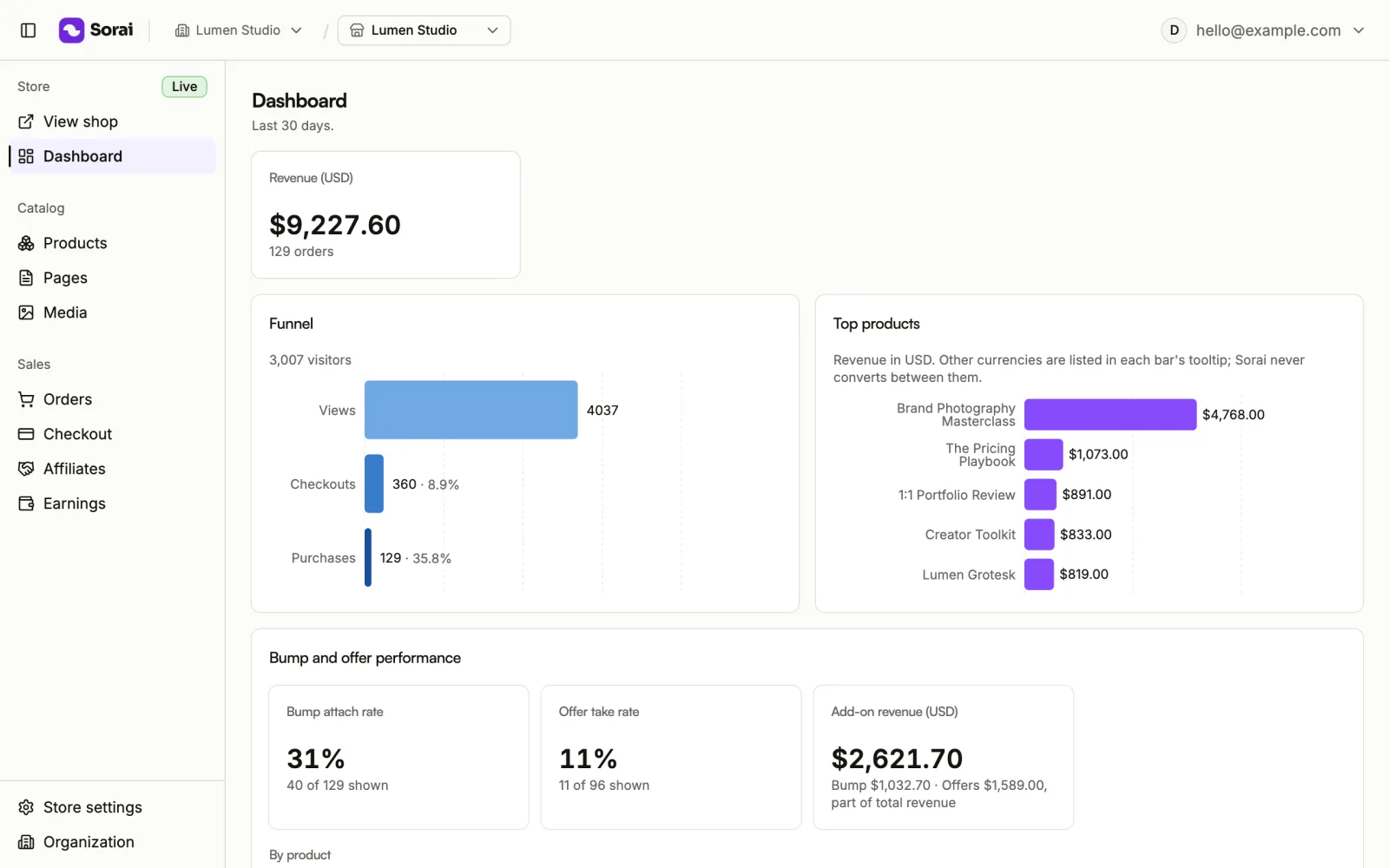
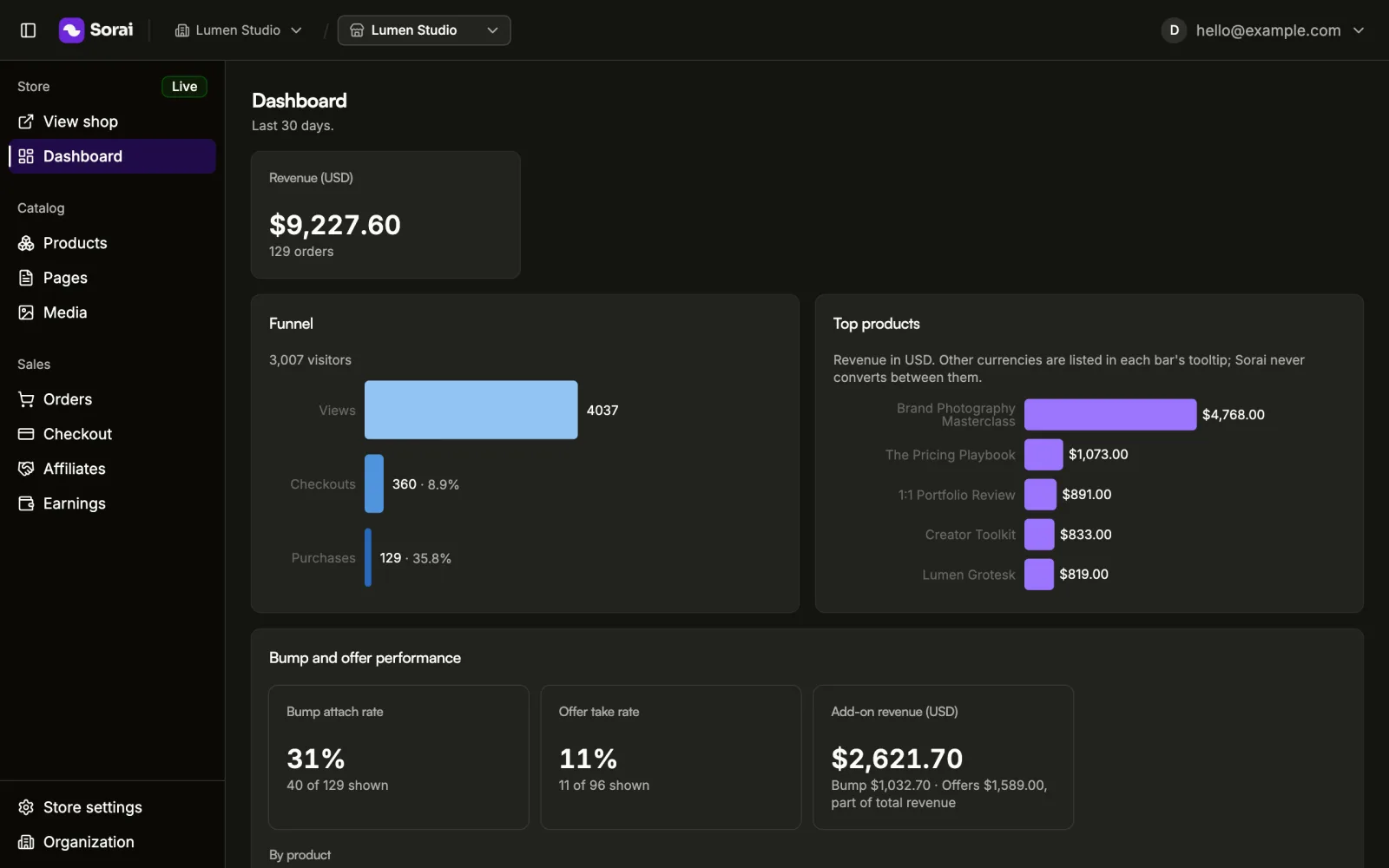
Every screen in the console has the same frame: a bar across the top that says which business and store you're in, a sidebar of everything in that store, and, when something needs you, a banner above the page.
The top bar
- Organization and store: two pickers, side by side. The first is your organization (your business), the second is the store inside it. Pick a different one to switch. Each list ends with New organization or New store. On a phone the two fold into one button that opens both lists.
- Your name: opens your menu, with Account, My affiliate links, Refer creators, Appearance, Language and Sign out. Where the console asks about cookies, Cookie settings is here too.
The sidebar
The sidebar lists the current store's screens in groups:
- Store: View shop opens your storefront in a new tab, and Dashboard.
- Catalog: Products, Pages, Media.
- Sales: Orders, Checkout, Affiliates, and Earnings for the whole organization.
- At the bottom: Store settings for this store, and Organization for your team, API keys and plan.
On a wide screen you can collapse the sidebar to icons to give a page more room. On a phone, open it with the menu button at the left of the top bar.
Is your shop live?
Beside the Store heading, a badge says whether buyers can reach your store:
- Live: your store is active and its homepage is published.
- Not live: buyers who open your store's address get Page not found.
When the only thing missing is your homepage, View shop first opens Your homepage isn't live. Product pages still open. Choose Open and publish to publish the homepage, Choose a homepage if your store has none set, or Open anyway to look at the store as it is. If publishing waits on verification, the dialog offers Complete verification instead. See Page builder.
Banners
Some banners stay at the top of every page until the thing they ask for is done.
- Verification: owners and admins see where verification stands, from Verify your business to start selling to Your verification is in review. Selling and payouts stay locked until it is approved. See Verification.
- Suspension: This account is suspended or This store is suspended, with the reason when there is one. Contact Sorai support for help.
- Payment due or Past due beside Organization in the sidebar means your plan's payment needs attention. It opens billing.
Tours
The first time you open some screens, a short tour points out what matters there. On your dashboard, replay it with the help icon on the setup checklist. On Pages and in the page builder, choose the help button, then Take the tour.