
Discount codes
Give buyers a percentage or a fixed amount off when they type a code at checkout.
A discount code takes money off an order when a buyer types it at checkout. Codes belong to a store and work on any of its products.
Find them under Catalog: open Products, then the Discount codes tab.
Create a code
- Choose New discount code.
- Enter the Code, such as SUMMER20, or choose Generate for a random one. Use letters, numbers, hyphens and underscores. Buyers can type it in any case.
- Pick the Type:
- Percentage: a share off the order, in any currency. A percentage can't be more than 100.
- Fixed amount: a set amount off, in one currency.
- Enter the Value.
- Set any limits or conditions you want (see below).
- Choose Create code.
Limits and conditions
All of these are optional. Leave a field empty and it doesn't apply.
Under Usage limits:
- Total uses: how many times the code can be used across all buyers.
- Uses per buyer: how many times one buyer can use it.
Under Conditions:
- Minimum purchase: the smallest order the code works on.
- Maximum discount: for a percentage code, the most it takes off one order, however large the order is.
A fixed amount, a minimum purchase and a maximum discount all count in the code's Currency. A checkout in another currency can't use the code.
The codes list
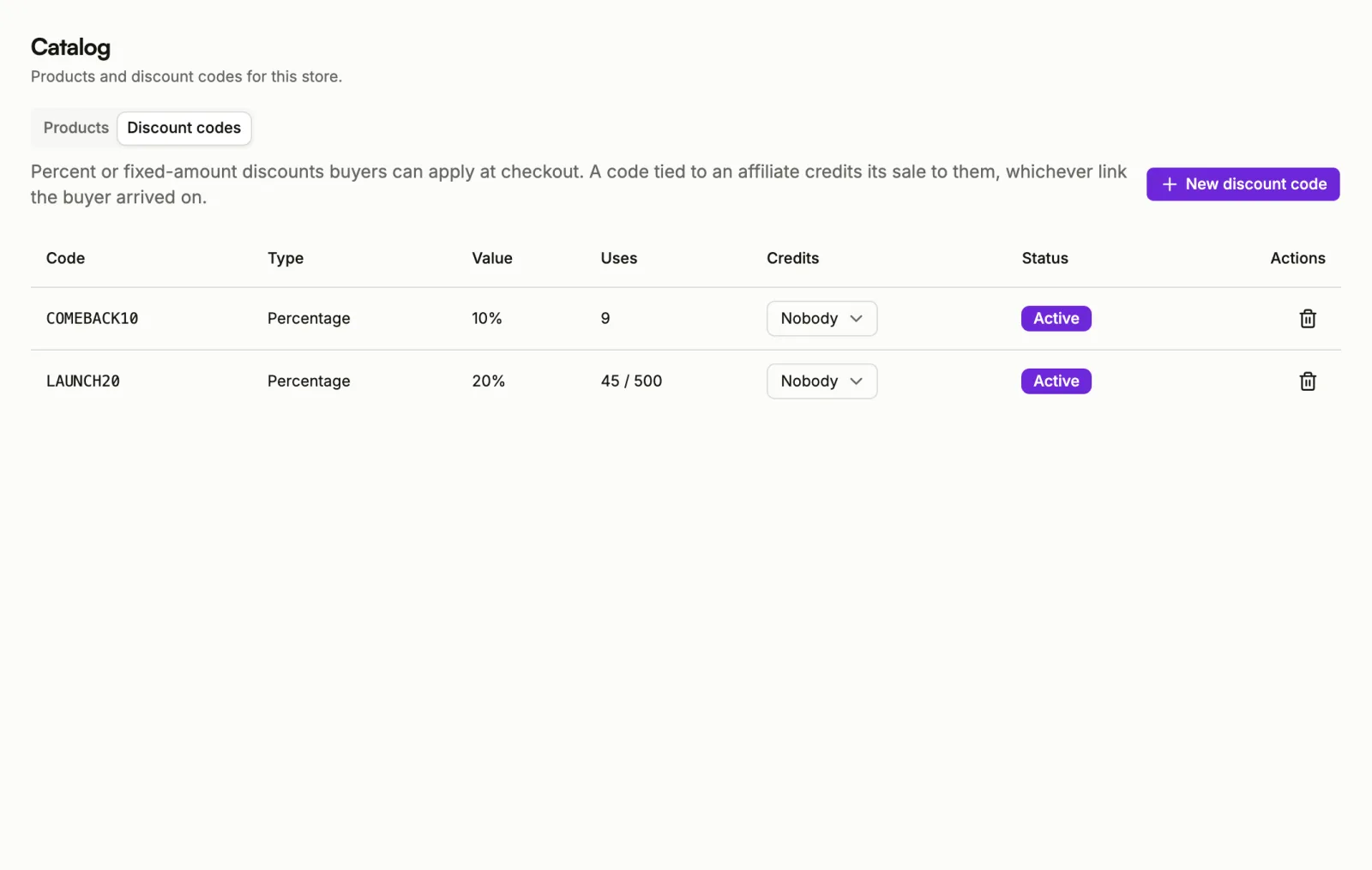
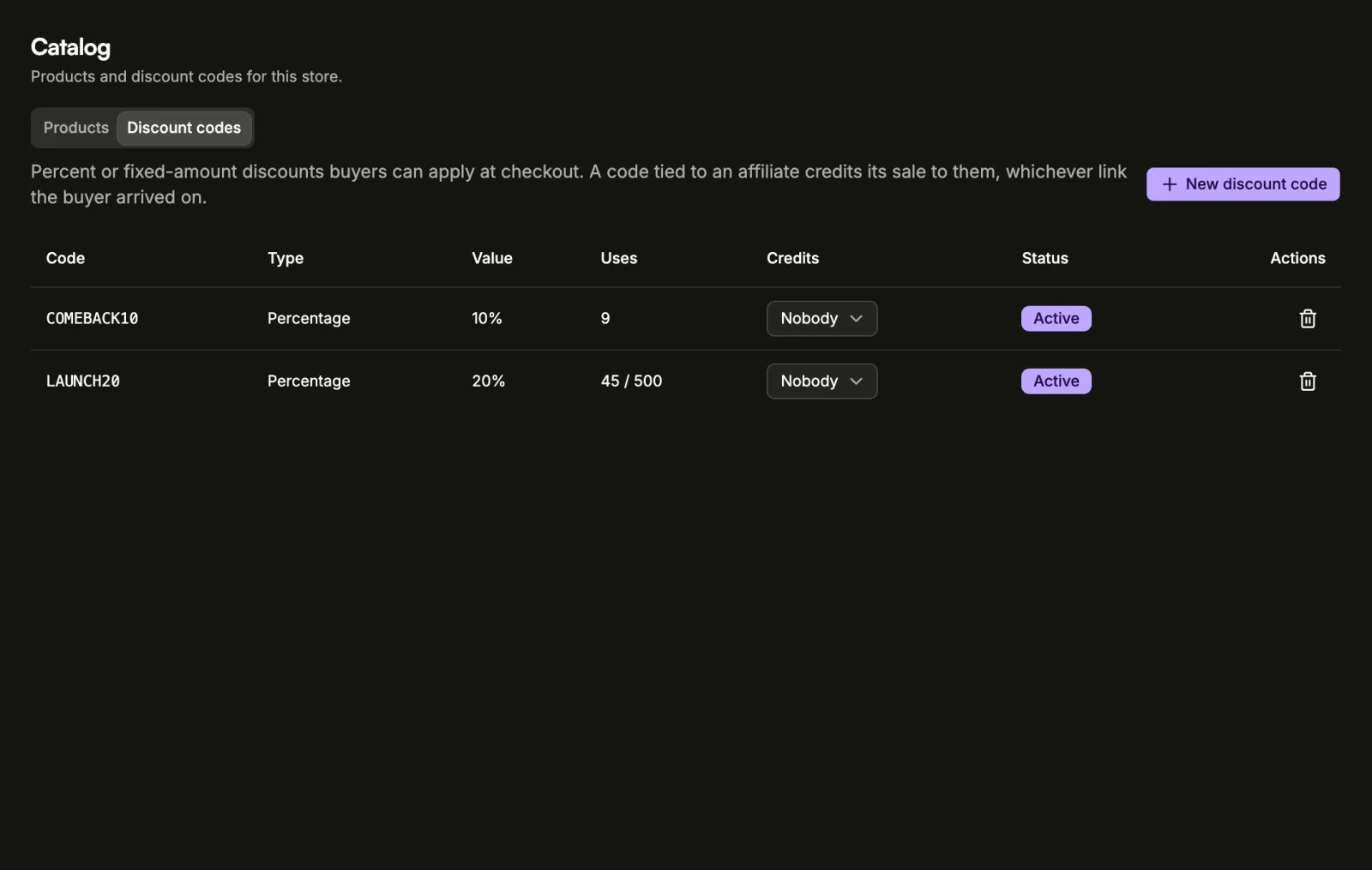
Each row shows the Code, its Type and Value, how many Uses it has had (out of its total, when there is a limit), and its Status.
To stop a code working, choose the remove button on its row, then Remove. Buyers can't apply it after that.
Codes for affiliates
When your store has active affiliates, the Credits column lets you tie a code to one of them. A sale that uses the code is credited to that affiliate, whichever link the buyer arrived on. Pick Nobody to untie it. See Affiliates.