

Media
Upload the images for your products and pages, and see where each one is used.
Media is every image you have uploaded for this store. Upload an image once, then use it as a product's cover, in a product's gallery, or on a page.
Open it from the sidebar: Catalog, then Media.
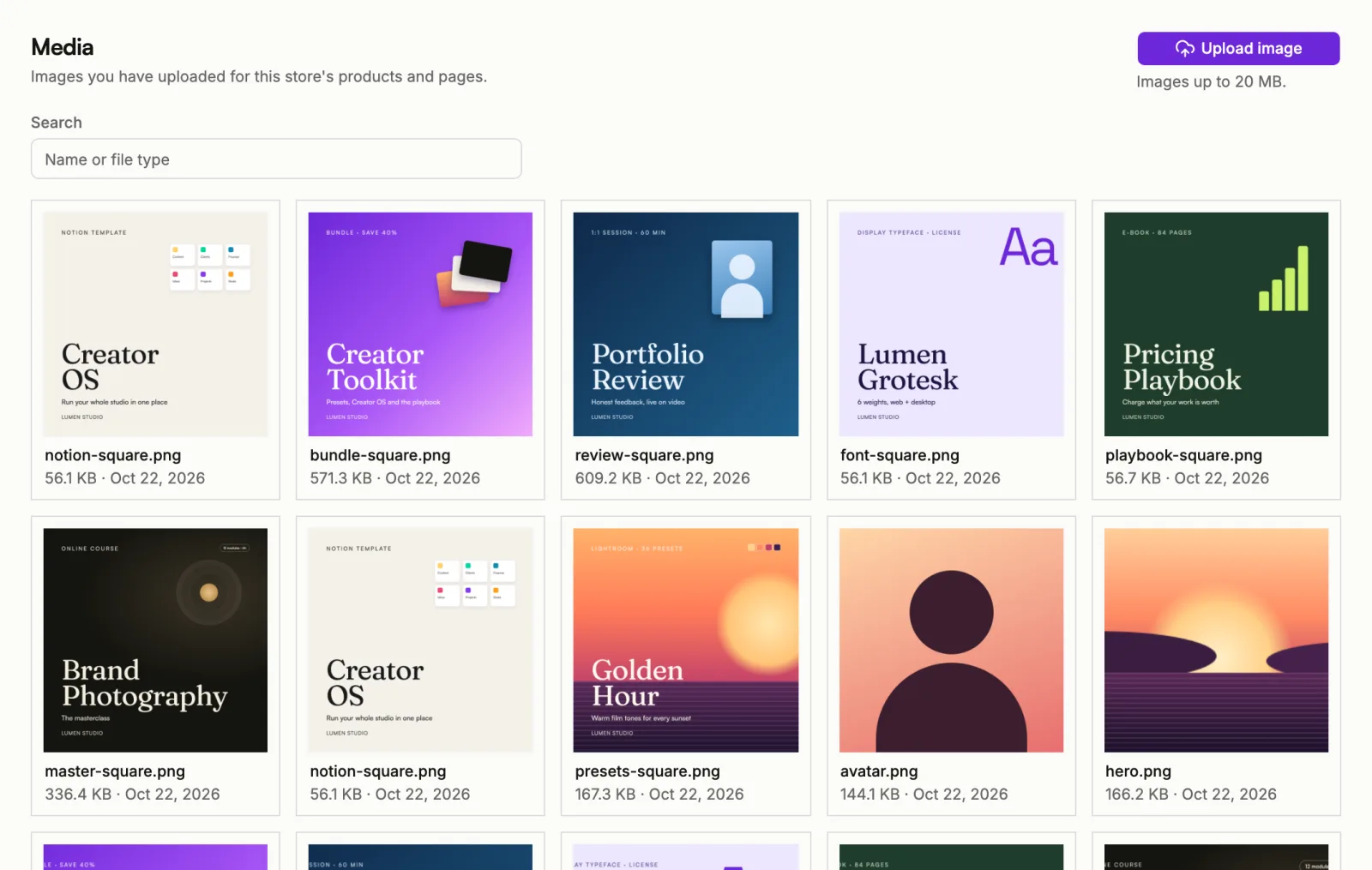
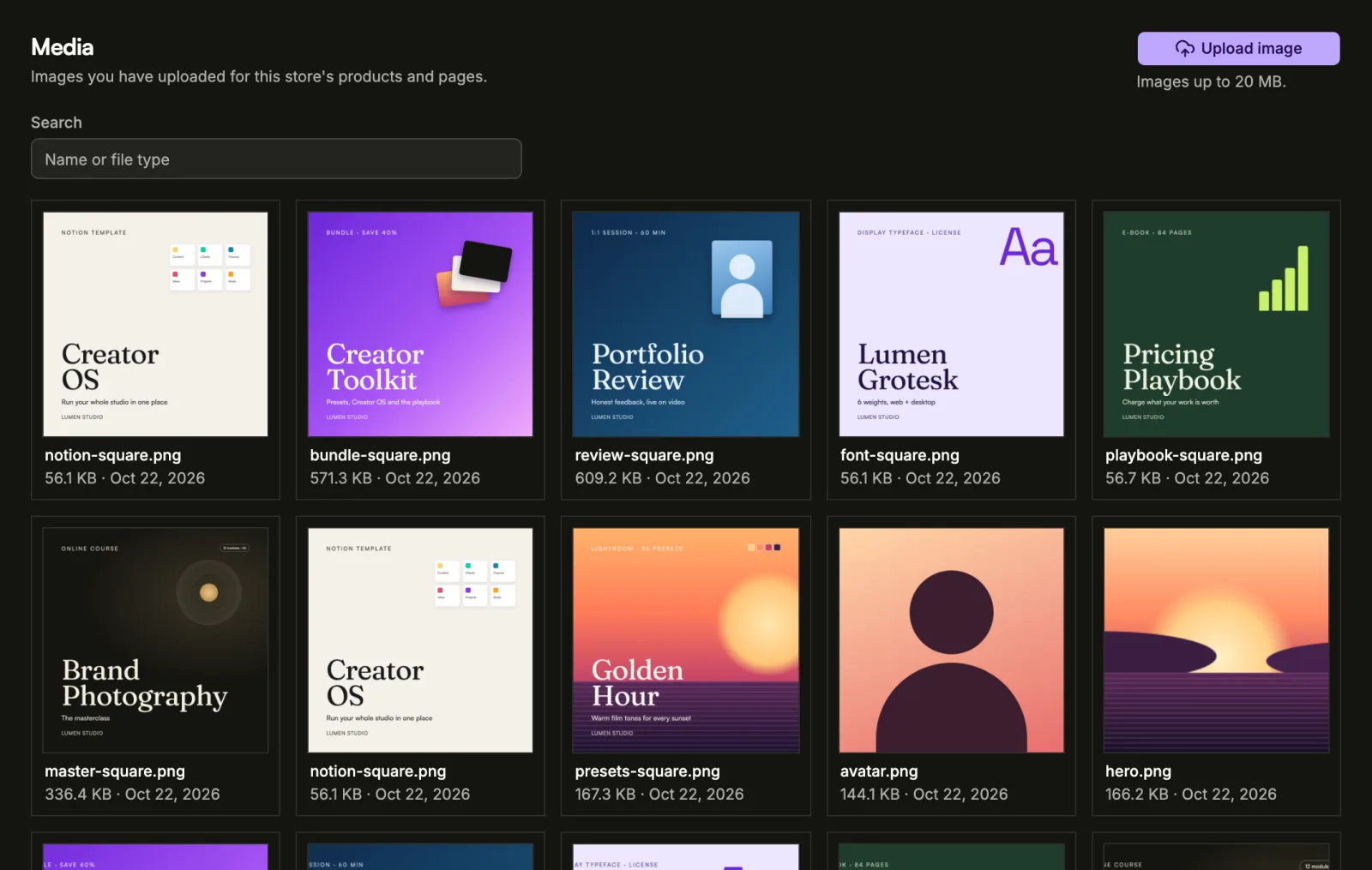
Upload an image
- Choose Upload image.
- Pick an image from your device. Images can be up to 20 MB.
Each image shows its size and the date you uploaded it. Choose an image to see it as buyers will load it, with its Dimensions and when it was Uploaded. Use search to find an image by name or file type, and Load more to see older ones.
If an upload fails, the screen says at which step. Choose Retry to try again, or Discard to drop it.
Use an image on a product
On a product, under Selling content, choose Choose from library next to the cover, or add an image to the Gallery. Pick an image you already uploaded, or choose Upload image to add a new one. See Create a product.
Images you upload from a product's cover field land in Media too, so you can reuse them anywhere in the store.
Delete an image
Choose the delete button on the image. Before you confirm, Sorai checks where the image is used:
- Nothing in this store uses this image. It is safe to delete.
- Used by the cover or gallery of a product, or a page, and those are live: buyers stop seeing the picture there right away.
- Used by places that aren't on your live shop yet: nothing changes for buyers today, but those places lose the picture.
Deleting a product doesn't delete its images; they stay in Media.