

Orders
Find every purchase from your store, filter the list and export it.
Every purchase from your store becomes an order, newest at the top. An order starts when a buyer begins checkout, so the list also shows orders that were never paid. Open Orders in the sidebar, under Sales.
The page has two tabs:
- All orders: every order, with its status.
- Unpaid checkouts: checkouts that ended without payment, and how each one is being won back. See Unpaid checkouts.
Read the list
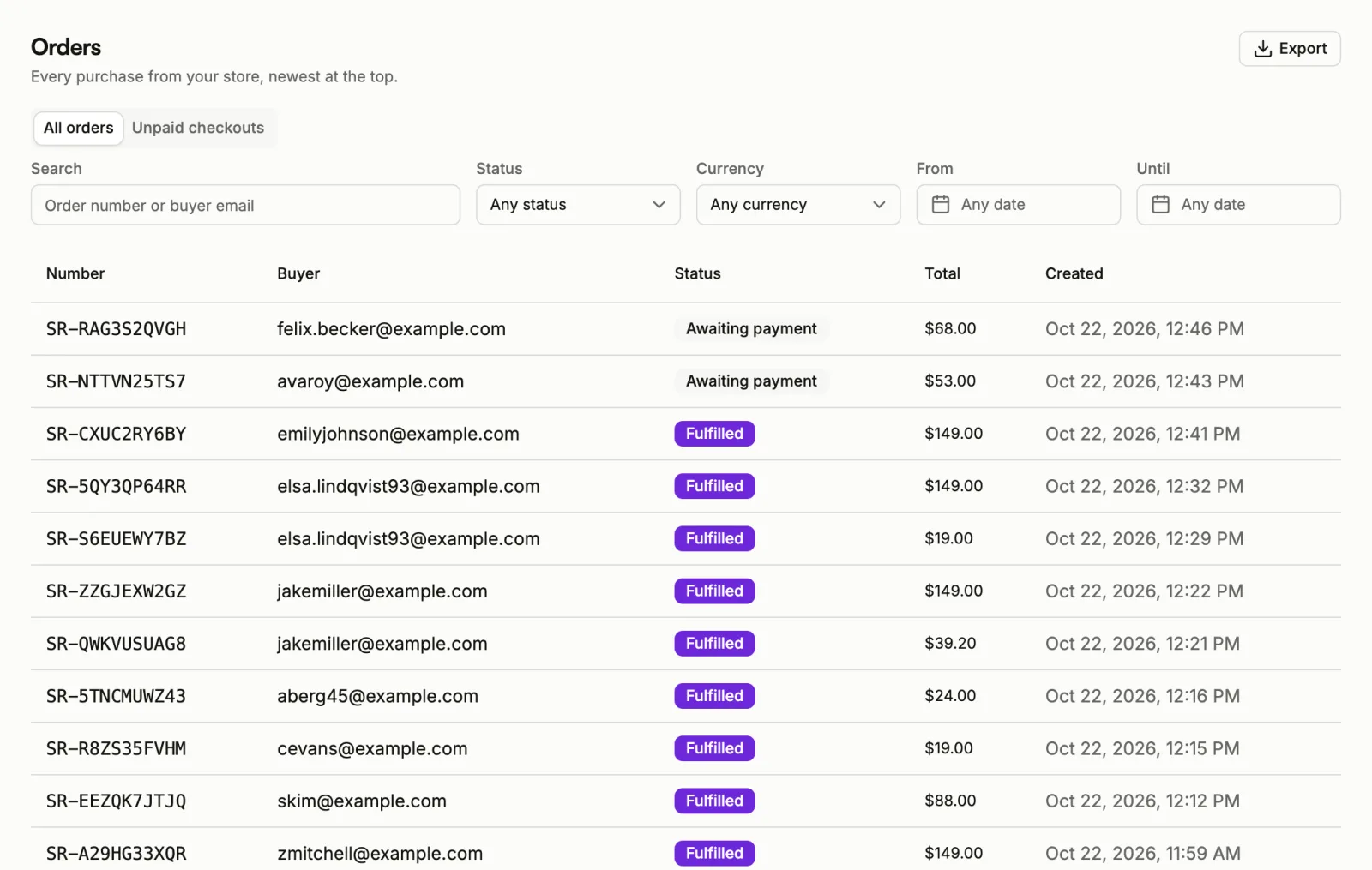
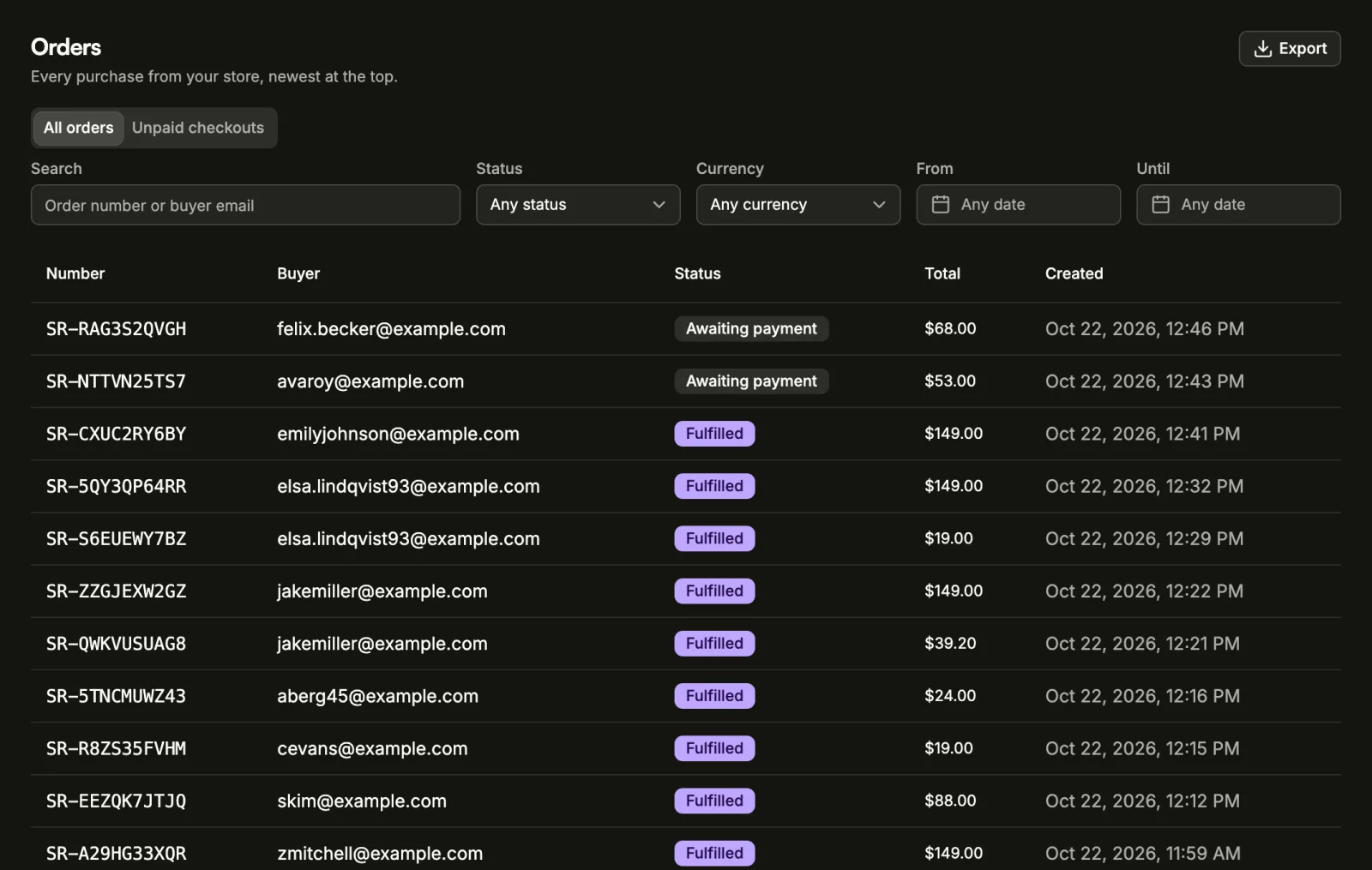
Each row shows the order Number, the Buyer's email, the status, the Total and when it was Created. On a phone the row folds into two columns, with the money on the right. Select an order number to open the order; see Order details.
Order statuses
- Pending: checkout has started. The buyer has not picked a payment method yet.
- Awaiting payment: the buyer picked a method. Sorai is waiting for the money to arrive.
- Paid: the payment arrived.
- Fulfilled: paid, and what the buyer bought has been delivered to them.
- Expired: the buyer didn't pay before the payment window closed. Nothing was charged.
- Cancelled: the order was cancelled before it was paid, by the buyer or by you.
- Refunded: the money went back to the buyer and their access was taken back.
Filter and search
Above the list:
- Search: an order number or a buyer's email.
- Status: one status, or Any status.
- Currency: one currency, or Any currency.
- From and Until: a date range for when the order was created.
If nothing matches, widen the date range, or clear the status and currency.
Export orders
Export downloads a CSV file of the orders that match your current filters. Exporting depends on your plan.
If you see This export stopped early, there were more matching orders than one file can hold. Narrow the filters, for example to a shorter date range, and export again for the rest.