

The page builder
Add blocks, edit what they say and how they look, and preview the page.
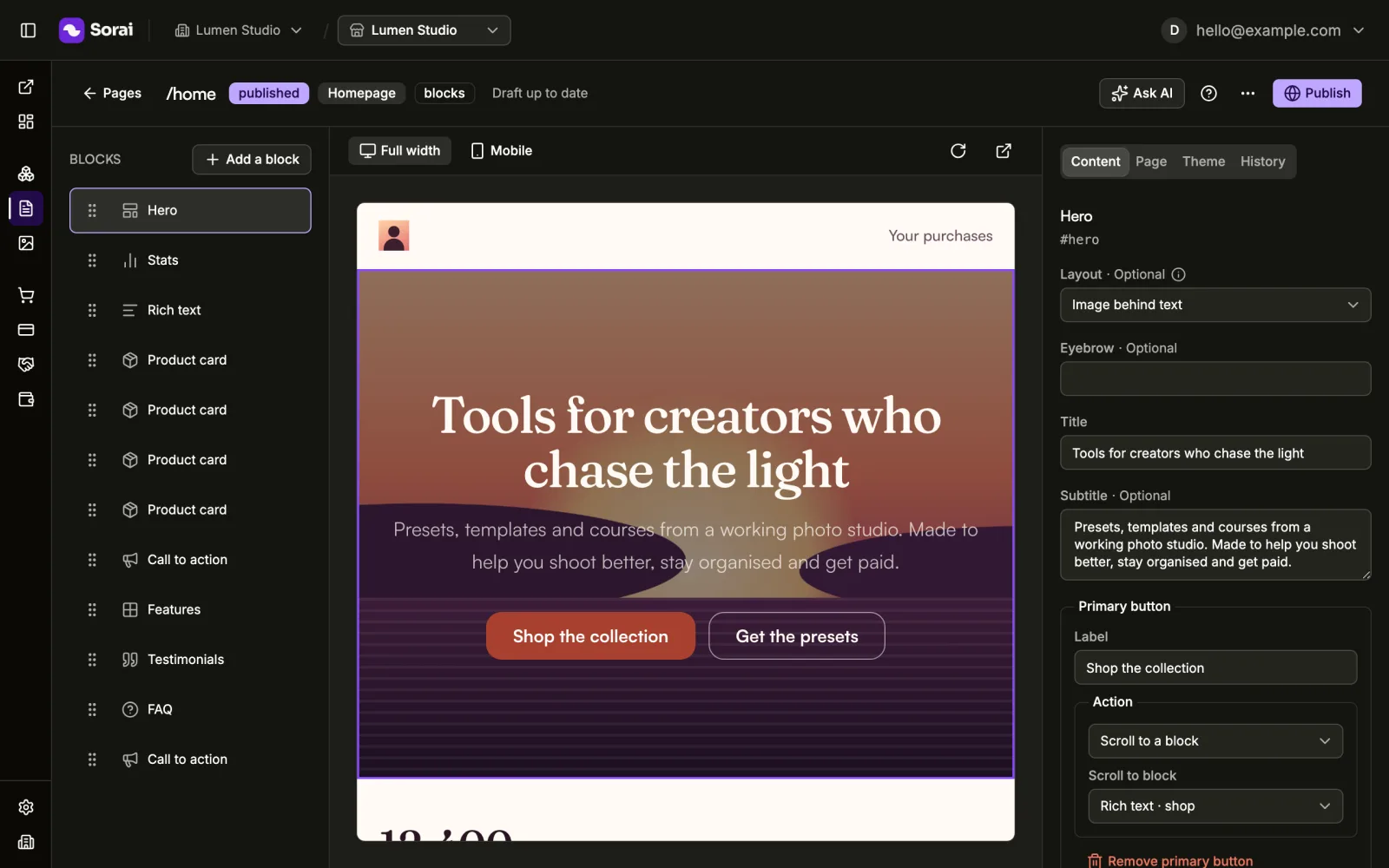
Open any page from Pages to edit it in the builder. The block list sits on the left, a live preview of your storefront in the middle, and the settings for whatever you select on the right. On a narrow screen the side panels open from the Blocks and Settings buttons instead.
Your work saves as a draft while you type. The status next to the page's name says where it stands, for example Draft saved or Unsaved changes. Nothing goes live until you publish.
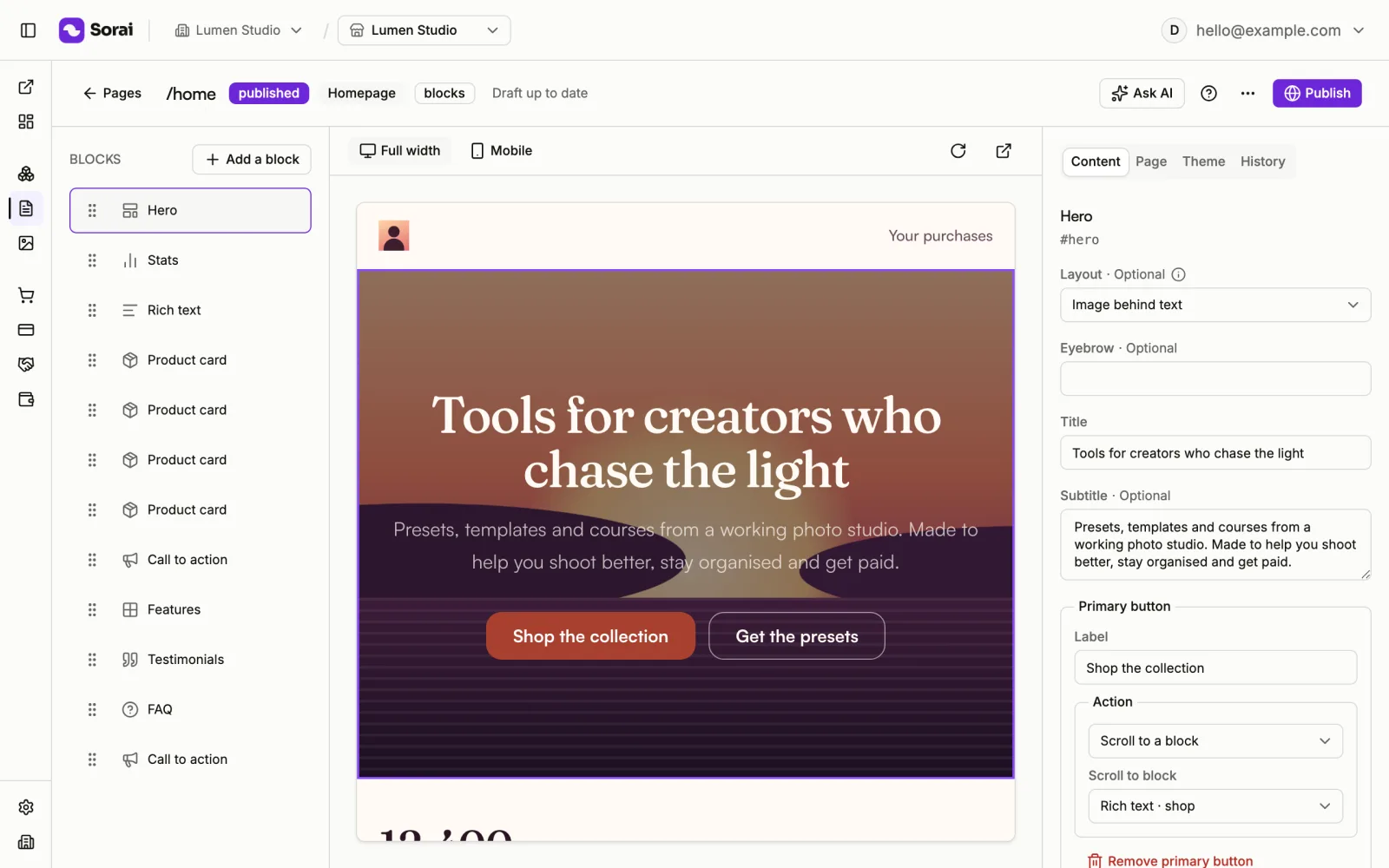
Add and arrange blocks
- Choose Add a block and pick one from the list.
- Drag a block in the list to move it. With a keyboard, focus the block's handle, press space or enter, move it with the arrow keys, and press space or enter again to drop it.
- Use the icons on a block to duplicate or remove it.
The blocks you can add:
| Block | What it is |
|---|---|
| Hero | Headline, subtitle and up to two buttons |
| Features | A grid of short benefit cards |
| Pricing | A product's prices, live from the catalog |
| Testimonials | Quotes from buyers |
| FAQ | Questions and answers |
| Gallery | A carousel of images |
| Video | One embedded video |
| Call to action | A closing pitch and one button |
| Links | A column of buttons, one per link |
| Product card | One product with its buy button |
| Checkout | The checkout form, in the page |
| Rich text | Formatted text: headings, bold, italic and lists |
| Countdown | A timer counting down to a date |
| HTML embed | Your own markup, rendered as-is |
| Stats | Three or four figures, each with a label |
| Steps | Numbered steps, each a title and a line |
Pricing, Product card and Checkout need a product from your catalog. If you have none yet, add one under Products first. See Create a product.
Edit a block
Select a block in the list or in the preview. Its fields open on the Content tab.
- Buttons can Open checkout for a product and price, Go to a link
(a full address or another page such as
/another-page), or Scroll to a block on the same page. - Images come from your store's media. Choose Browse to pick one, and Crop to choose what stays in frame.
- Open Appearance to change this block only: its background (a colour, a gradient, an image or a brand tint), text colour, width, padding, alignment and shape.
A block marked needs attention is missing something it needs. Until you fill it in, the draft cannot save, and the status reads Fill in the highlighted block to save.
Page settings
The Page tab holds the page's Slug, Kind, Title, Description, Social image and Canonical URL, and whether to Show store header & footer. Block pages show the store header and footer by default, so buyers always have a way back to the shop. These settings are not part of the draft: choose Save page settings to save them.
Changing the slug changes the page's address on your storefront.
Preview
The preview shows the page as buyers will see it, in your theme. Switch between Full width, Tablet and Mobile to check each size, or open the preview in a new tab.
Version history
The History tab lists every saved version, marked by where it came from: your edits, a template, the AI builder, or a restore. To go back to one:
- Choose View to show it in the preview.
- Choose Restore this version.
The version replaces your current draft. The live page stays as it is until you publish. To save a version you can find easily later, choose Save as a version from the page's more actions menu.
Discard draft, in the same menu, puts the editor back to the published version. Your unpublished edits stay in the history.
HTML pages
An HTML page has a Code tab with the page's HTML, CSS and JavaScript, and a Preview tab. Import HTML replaces the page with markup you paste: its styles and inline scripts move to the CSS and JavaScript tabs, and its title and description fill in the page settings.
You can turn a block page into an HTML page with Convert to HTML.
Converting to HTML cannot be undone. The page becomes code you edit, and the block editor is gone for it. Countdowns stop counting, galleries stop sliding, videos lose their player, and a checkout block becomes a buy button that opens checkout in its own window. Buy buttons keep working.
Theme overrides apply to block pages only; an HTML page carries its own CSS.